Still using your router's default password? Fix these 9 Wi-Fi settings in 20 minutes
A plain-English checklist for locking down your home network, from router passwords to smart home devices.
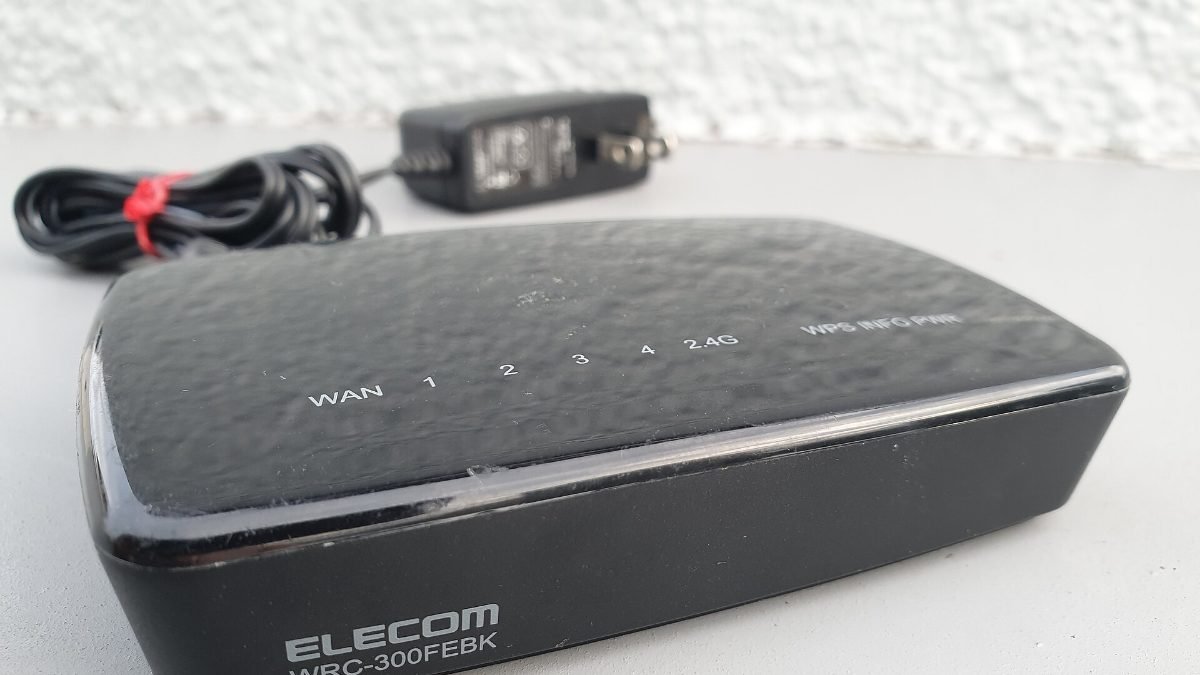
Photo: Syced / Wikimedia Commons, CC0
Your Wi-Fi router is the front door to every device in your home: laptops, phones, cameras, smart speakers and even the TV. Yet many routers still run on the default password printed on a sticker, with firmware that hasn't been updated in years.
We researched guidance from router makers, government cybersecurity agencies and independent security writers, then boiled it down to the steps that matter most for a typical household. You don't need technical skills. Most of these settings live in your router's app or web page and take a few minutes each. Set aside 20 minutes and work through the list once.
Change the router's admin password and Wi-Fi password
Your router has two passwords. The admin password controls the router's settings. The Wi-Fi password lets devices join the network. Change both from the defaults.
Open your router's app, or type its address (often printed on the label) into a browser. Choose a long, unique passphrase for each, such as four or five random words. A password manager makes this easy. While you're there, rename the network so it doesn't reveal the router brand or your family name.
Turn on WPA3 or WPA2 encryption
Encryption scrambles traffic so neighbors and passersby can't read it. In your wireless settings, choose WPA3 if your router supports it, or WPA2/WPA3 mixed mode if some older devices won't connect. If you see WEP or an open network option selected, change it right away. Those settings offer little or no protection.
Update the router's firmware
Router makers release firmware updates to patch security holes. Check the router app or admin page for an update option, and turn on automatic updates if it's available. If your router is more than five or six years old and no longer receives updates, replacing it is one of the best security upgrades you can make. Internet providers will often swap a rented router for a newer one on request.
Set up a guest network for visitors and smart devices
A guest network keeps visitors' devices separate from your laptops and phones. Many people also put smart plugs, TVs and other connected gadgets on a guest or separate network, so a weak device can't easily reach your personal computers.
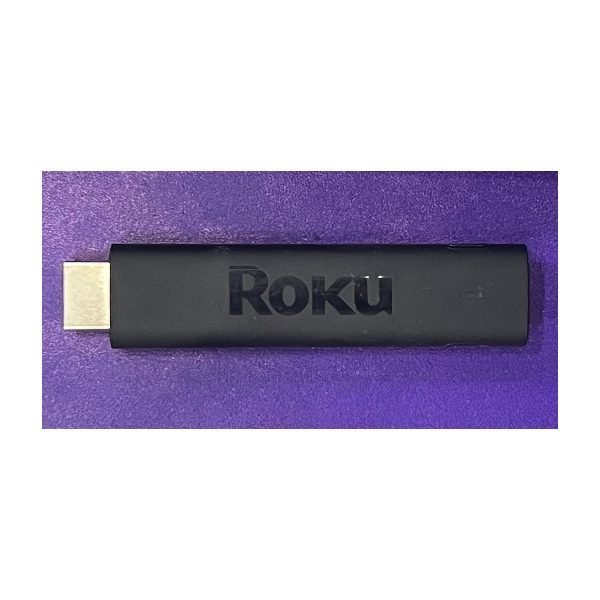
Smart displays and streaming sticks are generally well supported, but it still pays to keep them updated. If you're adding new gear, our picks for the best smart displays and best streaming devices focus on brands with a solid update track record.
Turn off features you don't use
- WPS: The push-button pairing feature has known weaknesses. Turn it off.
- Remote management: Unless you need to change router settings from outside your home, disable it.
- UPnP: This lets devices open ports automatically. Some games need it, but if you don't, turning it off reduces risk.
Keep your devices and accounts healthy
A secure router helps, but every device still needs care. Turn on automatic updates for phones, laptops and smart home apps. Use two-factor authentication on your router account, email and smart home accounts. Every few months, look at the list of connected devices in your router app and remove anything you don't recognize.
Finally, be careful on public Wi-Fi when you travel. Stick to sites using HTTPS, avoid logging into banking on open networks and consider a reputable VPN. If you're also reviewing your finances, our guide on building an emergency fund is a useful next step for household security of a different kind.
Frequently asked questions
How do I know if someone is using my Wi-Fi?
Check the connected devices list in your router app or admin page. Unknown devices are a sign to change your Wi-Fi password and turn on WPA3 or WPA2.
Should I hide my Wi-Fi network name?
Hiding the network name adds little real security and can cause connection problems. A strong password and modern encryption matter far more.
Do I need a new router to be secure?
Not always. If your router still gets firmware updates and supports WPA2 or WPA3, adjusting its settings is enough. Replace it if updates have stopped.